

checkout, built in
Every gift. One tap.
The new Site Stacker checkout, with Apple Pay. Fewer fields. Faster gifts.
Givers add gifts to an in-page cart and pay with Apple Pay in a single tap, using the card already in their wallet. Every gift lands on the person's record, tied to its campaign. Checkout, woven into the giving pages you already run.
01apple pay, built in
One tap.
The gift is in.
No card to find. No numbers to type. Just a glance and a tap.
On an iPhone, iPad or Mac, givers see an Apple Pay button right on your giving page. They confirm with Face ID or Touch ID, and the gift is done. Apple Pay runs through Nelnet, so it settles alongside the rest of your giving.
- 1
Pick the gift
Choose an amount on any giving page.
- 2
Tap Apple Pay
The Apple Pay sheet opens with the card already in their wallet.
- 3
Glance to confirm
Face ID or Touch ID approves it. No forms.
- 4
Thank you, on screen
The gift is in, the receipt goes out, and it lands on their record.
Made for the phone
Most gifts start on a phone. Now they finish there too, without a keyboard.
Private by design
Apple Pay shares a one-time payment token, not the card number.
Fewer drop-offs
Every field you remove is one less reason to leave before giving.
Cards still welcome
Credit card and ACH sit right beside Apple Pay, in the same checkout.
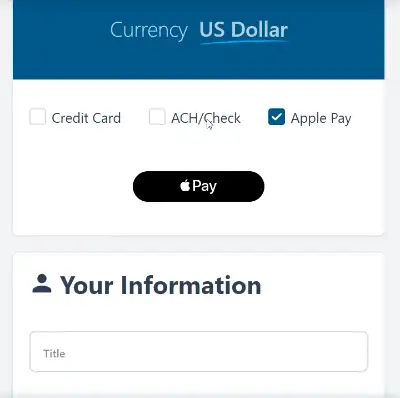
every way to give
Apple Pay, card or ACH. One checkout.
Givers choose how to pay right in the checkout. Pick Apple Pay and its button appears in place. Credit card and ACH are one click away, with the currency shown up front.
02right on the page
The checkout
comes to them.
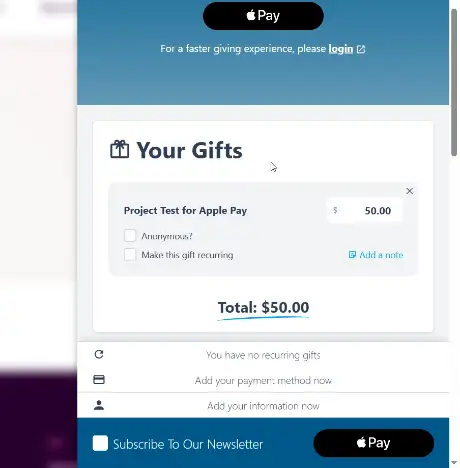
It slides in over the page they are on. Their gifts, their total, one place.
Every gift waits in one cart. Givers can make any gift recurring, give anonymously or add a note, then check out together. No redirects, no second tab, no starting over.
03right on the record
Every tap.
On the record.
Same CRM. Same campaigns. Nothing to reconcile by hand.
An Apple Pay gift is a gift like any other in Site Stacker. It lands on the person's record, is credited to its campaign, and shows up in your reports. Your team sees it the moment it comes in.
- Gift to Clean Water, $50Apple PayToday, 9:41 AM
- Started monthly sponsorship, $38Apple PayToday, 9:41 AM
- Receipt sentToday, 9:41 AM
- Gift to Where Most Needed, $100March 4
04drop it on any page
One module.
Any page.
The Commerce Checkout module. Placed in Site Planner, like everything else.
Add the Commerce Checkout module to a page in Site Planner, choose the campaign, and it is ready. Your payment processor, sites and campaigns are set up once, then every checkout page uses them.
Set up once
Connect the processor in Processors, then reuse it on every checkout page.
Campaign aware
Each checkout knows its campaign, so every gift is credited where it belongs.
Your brand, your site
The checkout sits inside your own pages, in your colors, on your domain.
05ready when you are
Make giving
one tap.
Turn on the new checkout, and every giving page can take Apple Pay, hold a cart, and put each gift right where it belongs.
New to Site Stacker? Test drive it. Already on Site Stacker? Ask us about turning on the new checkout.
Apple Pay, Face ID, Touch ID, iPhone, iPad and Mac are trademarks of Apple Inc.